
How to Transfer Files Between Your Phone and Computer Using a QR Code
Pair phone and computer by QR code, compare the six-digit code, approve incoming files, and download verified copies with clear network and size limits.
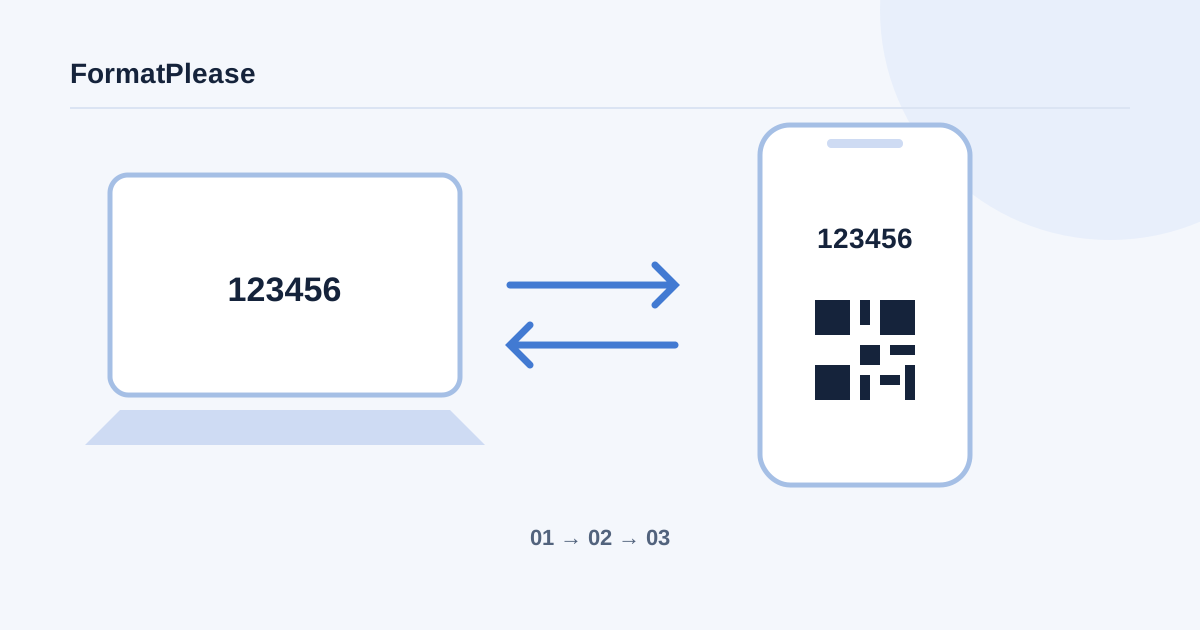
Open QR File Transfer on your computer, create a QR code, scan it on your phone, and compare the six-digit verification code on both screens. Approve pairing, send a batch, then accept and download the verified files on the receiver. Both devices need network access and a working direct WebRTC connection; this is not an offline transfer method.
Use a short-lived connection for a specific handoff
This workflow is useful for moving a phone photo, PDF, or video to a computer without attaching it to email or placing the file in cloud storage. It requires no account login. Have both devices available together so that you can verify the peer and approve incoming content.
The computer can host the pairing while the phone joins, but those roles do not limit the direction of sending. After connection, either side can send files or share text and URLs. Before starting with private material, try a small harmless file and confirm where the receiving browser saves downloads.
Create the QR code and verify pairing
- On the computer, open QR File Transfer and choose Create QR Code. Keep that page open and the displayed pairing invitation private.
- On the phone, scan the code with the system camera if it recognizes the link, or open the site’s Scan QR Code page and allow camera access. Open the pairing link in a normal supported browser.
- Look at the six-digit verification code on both devices. Compare all digits in person or through a trusted channel. Do not approve if the values differ or you were not expecting the request.
- Approve the matching pairing request on the host. Wait until both screens show that they are connected before selecting sensitive content.
- If the invitation expired or was already used, create a fresh code. The QR invitation expires after ten minutes and is consumed by the first pairing request; a connected session has a separate maximum duration of one hour.
Scanning a QR code is not itself approval to receive everything. Pairing verification and incoming-batch approval are separate checks. End an unexpected connection and make a fresh invitation rather than accepting an unknown peer.
Send, accept, verify, and save a file
- On the sending device, choose the photos, videos, PDFs, or other intended files. Review the selection and total size before sending.
- Before accepting, select an available receiving mode. Browser downloads retain verified files for you to download; supported desktop browsers can instead ask you to choose a destination folder.
- On the receiving device, inspect the incoming batch and choose Accept Files only when expected. Decline anything unexpected. Each incoming batch requires approval; receiving mode cannot be changed during a busy transfer.
- Keep both pages in the foreground with phones unlocked while transfer and verification finish. Do not refresh or close a page in the middle of a handoff.
- With browser downloads, press the offered download controls and locate the saved files. A verified result confirms byte length and SHA-256 integrity; it does not mean the browser has already saved the file to disk.
- Open the saved copy. With folder receiving, Saved appears after the verified write is committed. Check the destination and expected files before ending the session.
To send in the opposite direction, use the other device’s sending controls and repeat approval and saving. On iPhone, browser downloads usually belong in Files or the browser’s download location; a downloaded image is not automatically added to Photos.
Know the batch and message limits
| Receiving route | Current limits | What you must do |
|---|---|---|
| Browser downloads | 64 MiB batch budget on desktop; 32 MiB on mobile or low-memory devices | Download and clear retained results to recover memory |
| Supported folder receiving | 256 MiB per file and 1 GiB per batch | Choose a writable folder and wait for Saved |
| File selection | Up to 20 files in a batch | Split larger selections |
| Text or URL | Up to 8 KiB of UTF-8 content per item | Review content; open HTTP/HTTPS links deliberately |
Retained browser files consume a cumulative budget across batches, with at most 100 received entries and 50 shared text/link items in a session. A new batch does not reset retained memory. Folder receiving is browser-dependent; it is not a universal iPhone download workaround.
Use the text/link controls for a note or URL instead of creating a file. A shared URL is text to review, not a command to open automatically. For a large photo attachment, Image Compression can create a smaller copy first. If location privacy matters, inspect and remove photo metadata before sending.
Understand the network and privacy boundary
Files travel over an encrypted WebRTC data channel directly between the browsers when connectivity succeeds. Cloudflare still handles the temporary room and pairing signals; the file bytes are not relayed through that signaling service. Connection establishment also involves network addressing and STUN. This is not a claim that no server or network service is involved.
There is no TURN relay or server upload fallback. Some NAT, corporate Wi-Fi, VPN, or firewall arrangements prevent a direct path. MDN’s WebRTC connectivity guide explains why peer discovery and signaling do not guarantee connectivity.
Troubleshoot pairing and interrupted transfers
If scanning fails, improve lighting, allow camera access, or use the pairing link on the intended device. If code comparison or pairing fails, end the attempt and generate a new invitation. If matching peers cannot connect, try the same trusted Wi-Fi or another permitted network; do not disable an organization’s security controls.
If progress stops, bring both tabs to the foreground, unlock the phones, check the connection, and review the receiver’s storage and memory budget. Split the batch or use a smaller copy. Keep the source until you have opened the saved result; don’t assume that a disconnected page can resume after refresh.
Finish the handoff explicitly
Verify the files are saved and usable, clear retained results when appropriate, and choose End Session on completion. A successful handoff includes pairing the intended device, approving the intended batch, and saving the received copy. A QR code alone does not complete any of those checks.
Frequently asked questions
Can I transfer without internet?
This is not an offline guarantee. Both browsers need network access, signaling and a successful direct WebRTC path.
Does verified mean downloaded?
No. Browser-download mode still requires saving the verified file. Folder mode shows Saved after the verified write is committed.
Why does it fail on a company network?
NAT or firewall policies may block direct peers. Try another permitted network; there is no TURN relay or server-upload fallback.
Are received photos added to the iPhone Photos app?
Not automatically. Locate the browser download in Files and explicitly save to Photos if the system supports that action.
Written by FormatPlease. Suggest a correction or verify local file processing.