
How to Remove EXIF and GPS Location Data from Photos Before Sharing
Inspect a JPG, PNG or WebP for photo metadata, create a cleaned copy, and verify it again. Learn what EXIF removal cannot hide in the picture itself.
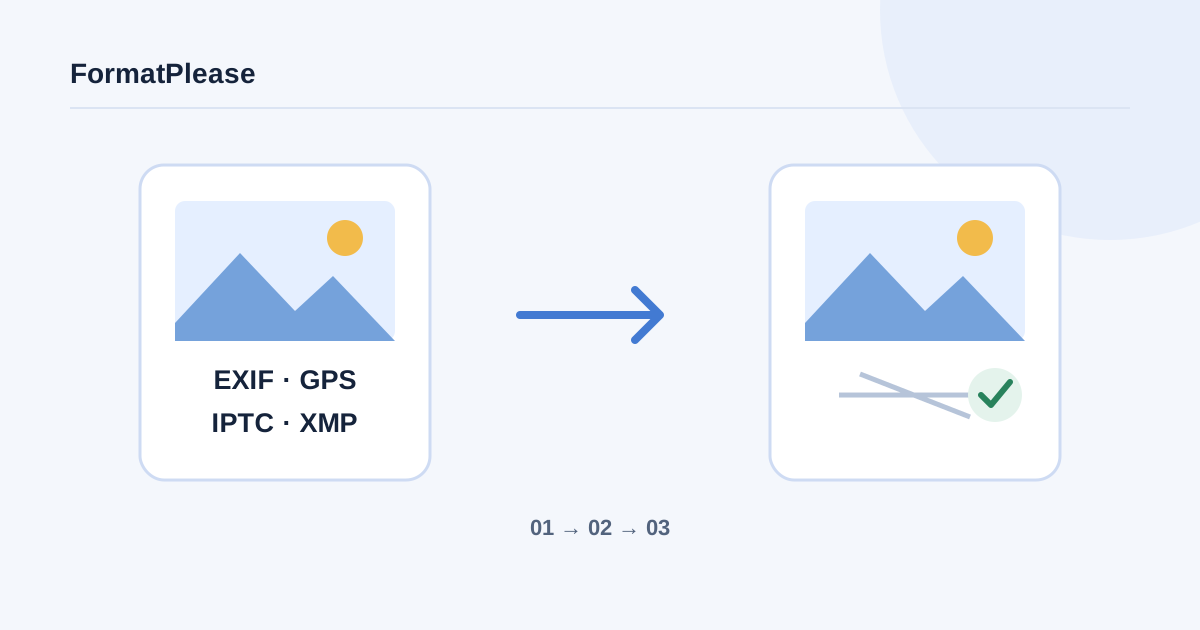
Before sharing a photo, inspect its metadata, create a cleaned copy with Remove Metadata, and inspect the downloaded copy again. This workflow supports confirmed static JPG, PNG, and WebP images. It removes embedded information such as EXIF and GPS; it cannot hide a street sign, face, address label, or other identifying detail visible in the picture.
Decide which information should travel with the image
A phone photo taken with camera location access may contain coordinates, while a camera image may carry its model, lens, exposure, and capture date. An edited or previously shared copy may contain different fields, or none. Do not assume that all photos contain GPS, that screenshots are always metadata-free, or that a messaging app always strips everything.
Inspect the exact file you intend to share. Keep the original privately if you need its capture history. For photographs supplied by someone else, also consider whether removing attribution or rights information is appropriate; privacy cleanup is not permission to disregard the creator’s requirements.
| Metadata family | What it can describe | Why a GPS-only check is incomplete |
|---|---|---|
| EXIF | Camera settings, dates, orientation and a GPS block | Other fields can still reveal context |
| GPS | Coordinates and related location measurements | Location can also appear in captions or pixels |
| IPTC | Captions, creator, rights and descriptive details | Identifying information need not be coordinates |
| XMP | Extensible descriptive or editing properties | It can duplicate information from other families |
The IPTC Photo Metadata Standard documents descriptive fields and their relationship with XMP. These are embedded descriptions, distinct from what a viewer can see in the image.
Inspect the original with EXIF Viewer
Open EXIF Viewer. Its interface is in English, and it reads supported metadata locally without sending coordinates to a map service.
- Choose the intended static JPG, PNG, or WebP. Wait for inspection to complete rather than relying on its filename.
- Read the location warning, if shown, and open Inspect metadata fields. Check Latitude, Longitude, camera information, and DateTimeOriginal.
- Review Metadata found, including Other EXIF, IPTC, XMP, or PNG text/comments. A message saying no EXIF was found does not imply that every other metadata family is absent.
- Note which information you want removed without copying private coordinates into a shared document or screenshot. If parsing fails, do not interpret the error as an empty result.
“Not recorded” means that the parser did not expose that field. It is not a guarantee about every possible proprietary tag. Camera timestamps can lack a time zone; avoid treating the displayed date as a verified global timestamp.
Create and verify the cleaned copy
Use Remove Metadata with the same original after inspection. It creates a new image instead of editing the original in place.
- Select the original supported image and review the displayed details. If it is animated or outside the shown device limits, this still-image workflow will not produce a cleaned result.
- Press Remove Metadata. The tool decodes and re-encodes the image, applies its display orientation, and checks the new file for retained metadata.
- Download the verified cleaned result. Keep its
-cleanfilename or choose another clear name so that it is distinguishable from the original. - Reopen that downloaded file in EXIF Viewer. Check for location data and all reported metadata categories again. If reading fails or information remains, stop and investigate rather than sharing it as verified.
- Open the cleaned picture in a normal viewer. Check orientation, transparency, color, fine detail, and dimensions, then inspect the visible scene for personal information.
- Share this reviewed copy. If another editor or sharing app subsequently exports it, inspect that final attachment again because it is a new file in the workflow.
The remover withholds a download when it cannot verify its own cleaning result. An independent check still helps you avoid selecting the original by mistake.
Understand the format and quality tradeoffs
This tool accepts confirmed static JPG, PNG, and WebP, not arbitrary HEIC, GIF animation, or video. A phone’s original HEIC may first need a suitable JPG export; see the HEIC conversion tutorial. Inspect the exported image rather than assuming an extension alone proves cleanup.
| Input | Processing here | Inspect afterward |
|---|---|---|
| JPG | Re-encoded at quality 95 | Fine detail, colors and new file size |
| PNG | Lossless encoding of decoded pixels | Orientation, transparency and color appearance |
| WebP | Re-encoded at quality 95 | Loss of detail and size changes |
“Lossless from decoded pixels” does not mean byte-for-byte preservation of the original PNG file. Color profiles are not retained. Re-encoding JPG or WebP can affect quality even at a high setting, and a cleaned file may grow. Keep the original when fidelity or documentary records matter.
Troubleshoot incomplete inspection and remaining clues
Damaged containers, unreadable metadata, oversized images, and insufficient memory can stop inspection or cleaning. Obtain a fresh original or export a smaller supported still copy, then repeat both checks. An empty field list after a parser error is not evidence of removal.
Metadata cleanup does not remove a revealing filename, a recognizable home exterior, faces, a visible map, or writing on a document. Rename the sharing copy if its name reveals private information, and use an appropriate editing workflow for pixels before inspecting the resulting file again. Also check who can access the destination and any caption you add there.
Share the inspected result
Treat removal as one step: inspect the original, clean a supported copy, verify the download, and review the picture. For format tradeoffs, read WebP vs JPG. A successful metadata check concerns the supported embedded fields; it does not make the entire photograph anonymous.
Frequently asked questions
Does no EXIF mean there is no location information?
No. XMP, captions, filenames and visible scene details can reveal context. Inspect all categories and the picture itself.
Does this clean HEIC or video?
No. This workflow supports confirmed static JPG, PNG and WebP only. Convert to a suitable still copy when appropriate, then inspect it.
Will cleaning preserve image quality exactly?
JPG and WebP are re-encoded at quality 95 and can change. PNG is lossless from decoded pixels, while color profiles and original file bytes are not preserved.
Written by FormatPlease. Suggest a correction or verify local file processing.