
Convert PNG to JPG Online

Turn a PNG photo or screenshot into a JPG for an upload form, email attachment or application that accepts JPEG files.

Working with different formats? Open the Private Image Converter to add a mixed batch and choose your output.

THE IMAGE CONVERTER 100% on your device

PNG input · Up to 50 files, 64 MB each
Up to 24 megapixels per image · No file uploads

View supported formats

Convert to Choose your new format

Everyday photos. A smaller file, ready to share.

90 / 100
Smaller fileBetter quality
Advanced Settings
Image dimensions

Aspect ratio is always preserved. No cropping or stretching. Enlarging does not add detail.

Quality uses a shared 1–100 scale for JPG / WEBP / AVIF; equal numbers do not imply equal visual quality. Resize changes pixel dimensions; enlarging cannot recover detail.

Transparency background

Use #RRGGBB. Only transparent pixels are filled; existing backgrounds and white PDF pages stay unchanged.

Auto orientation · Automatic
Browser-decoded images use the orientation supported by your browser. Check the preview before converting. TIFF orientation is applied to pixels before resizing.

Metadata · Remove metadata
EXIF, GPS and other source metadata are not copied to the newly encoded file. Keep the original if you need these details. Keep metadata is unavailable because no current engine preserves it. ICC is color information, not privacy metadata; color-managed native decode uses sRGB and does not retain the source profile.

NO UPLOADSNO SIGN-UPJUST YOUR IMAGES
Converted locally in your browser

Your files are processed on this device and are never uploaded. Large images may require significant device memory. Our privacy approach

CHOOSE THE RIGHT OUTPUT

PNG to JPG, explained

Turn a PNG photo or screenshot into a JPG for an upload form, email attachment or application that accepts JPEG files. By default this conversion keeps the pixel dimensions and fills transparent areas with white. Choose JPEG quality above Advanced Settings; expand the settings to resize or change the background. Keep the PNG original when transparency or exact graphic edges matter.

  1. Choose your PNG files. A preview confirms that each image can be read.

  2. Keep JPG selected and start with quality 90. Lower it if you need a smaller download.

  3. Convert, inspect fine details, and download individual JPGs or the complete batch as a ZIP.

When changing PNG to JPG helps

A photograph saved as PNG can be inconvenient for a form that expects a JPEG or limits attachment size. JPG gives you a quality control to trade some image detail for compression. A logo, line drawing or screenshot full of small text may be better left as PNG; the best choice depends on the picture, not just its extension.

What happens to a transparent background?

JPEG cannot store an alpha channel. FormatPlease fills transparent and partially transparent pixels with your selected background before encoding (white by default). Set White, Black or a custom hex color in Advanced Settings. Preview the result on the background where you intend to use it. If the background must remain transparent, choose PNG or WEBP instead.

Choosing JPG quality for a photo

The initial quality is 90 out of 100. For a photo intended for a web page, you can try 80–90 and compare the download at its actual display size. Look closely at hair, foliage, gradients and text. These settings are starting points for inspection, not guaranteed visual-quality or file-size targets.

Why the new file is not always smaller

A PNG with a few flat colors may already compress efficiently. JPEG overhead and the chosen quality can make its replacement larger. The results list shows the output size so you can make a real comparison. Optional resize in Advanced Settings can reduce pixel dimensions, but neither resize nor quality guarantees a particular kilobyte limit.

Avoid repeated lossy conversions

Every fresh JPEG encode can introduce additional changes. If the first result is too small or visibly damaged, adjust quality and convert from the original PNG again. Do not use the downloaded JPEG as the source for repeated experiments when the original is available. Metadata is not copied to the output.
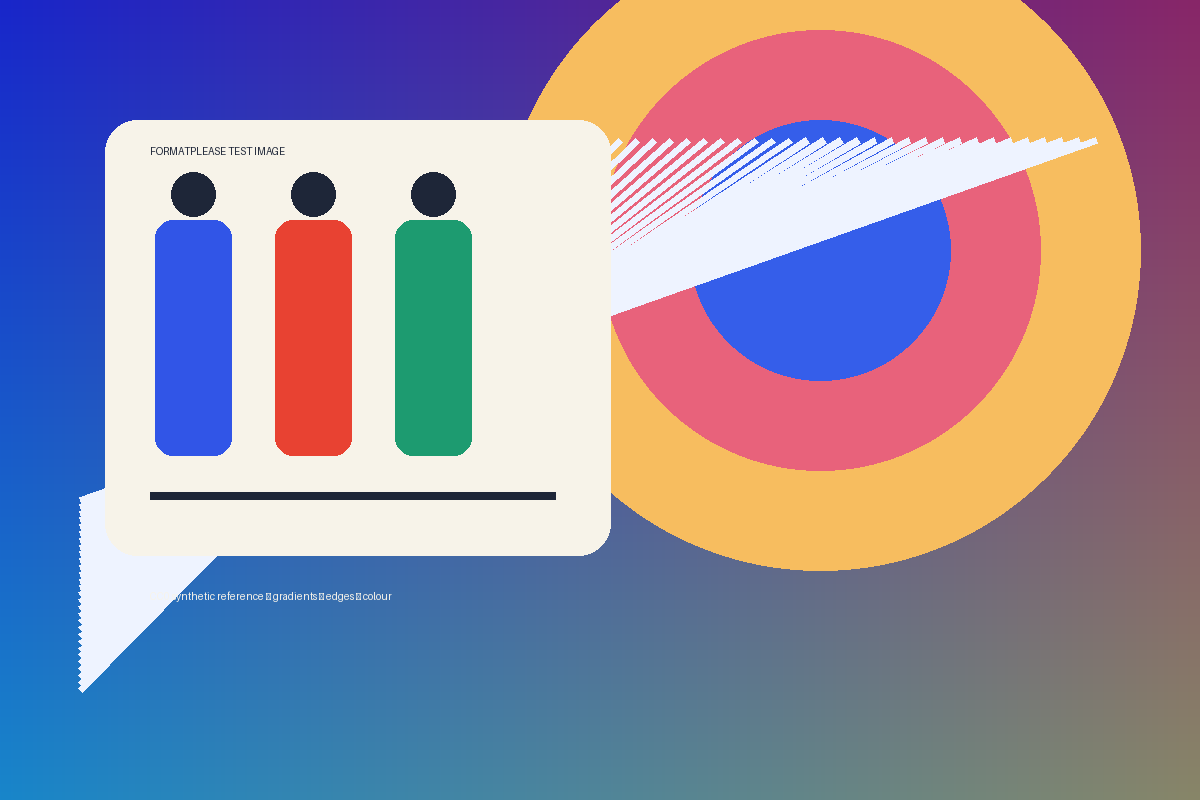
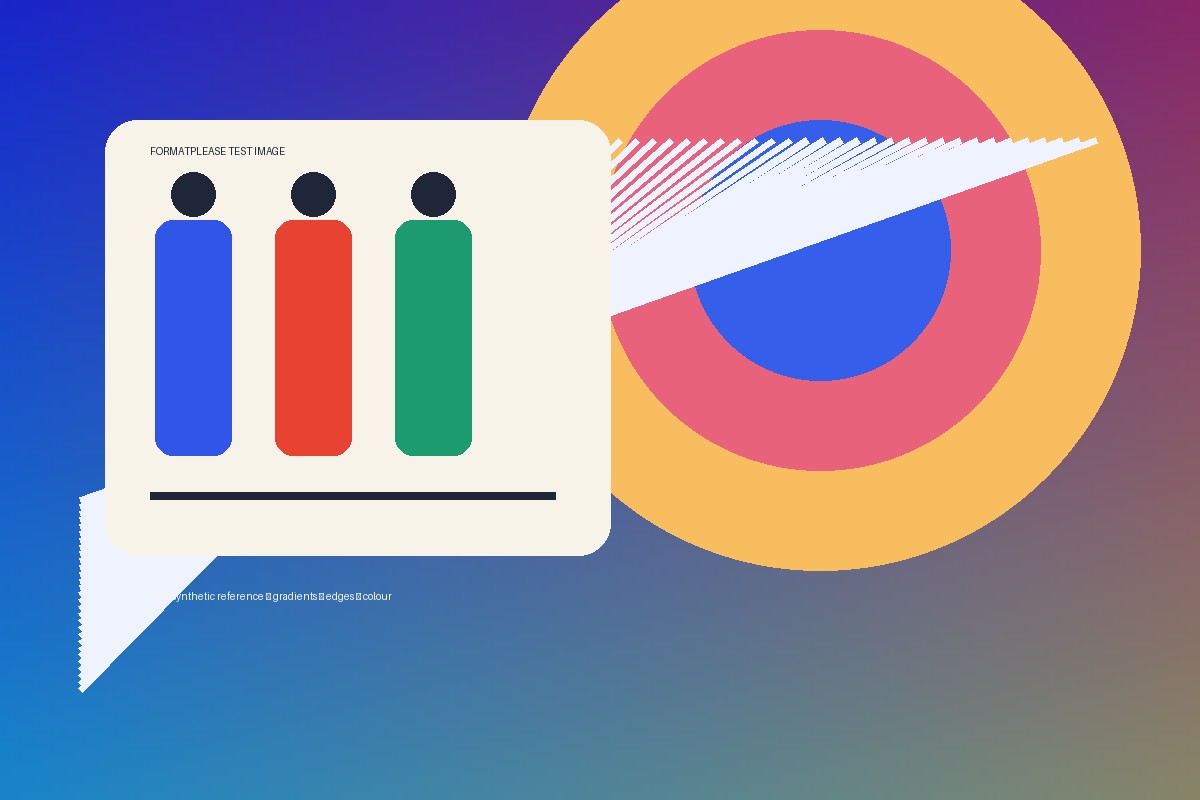
CONVERSION EVIDENCE

A measured PNG to JPG example

The source is a CC0 synthetic reference image, made to show gradients, colour blocks and sharp edges. The JPG was produced with this converter’s browser-native JPG encoder at quality 90. It is larger than this compact PNG, which is why the result does not claim a size saving for every image or setting.

CC0 PNG reference image with gradients, colour blocks and sharp edges
Source PNG
The same reference image after JPG conversion at quality 90
JPG output at quality 90
Source PNG detail crop showing diagonal lines and colour edges
Source detail
JPG detail crop showing the same diagonal lines and colour edges
JPG detail
Reference file checksums

SHA-256 773158f064bfbadaa7bf62007fb0128bfa1988d0d3d3ae9fa2629c79a7a1c1f6

SHA-256 d13db8f0e3114fb8f1a2bf0592a04738e987f9ca90e03a024c72d38821cafc80

Try the reference PNG with your own settings

Download the 1,200 × 800 PNG reference

Original synthetic test artwork, dedicated to the public domain under CC0. No personal files are needed to try this example.

  1. Save the reference PNG and add it above. Keep JPG selected, quality 90 and Original size.
  2. Convert and inspect the color edges, gradients and diagonal lines at 100% zoom. Compare with the measured example on this page.
  3. Try a lower quality using the original PNG. If your goal is a strict file-size limit, use the target-size compression tool linked below instead of assuming JPG will always be smaller.

What to check: A 1,200 × 800 JPG. Encoding bytes can differ between browsers; compare the downloaded size and appearance. This compact graphic may become larger after JPEG conversion.

BEFORE YOU DOWNLOAD

PNG to JPG: common questions

Can I make a JPG from this PNG smaller than 100 KB?

The converter changes format; its quality controls do not guarantee a specific size. For 100 KB, 200 KB, 500 KB or a custom upload limit, use the Target Size Compressor. It accepts JPG, PNG and WebP and produces JPG or WebP. Target Size Compressor.

Will my PNG keep its width and height?

Yes, with Original size selected. Advanced Settings also offers percentage scaling or fit within a width and height, preserving aspect ratio without cropping. Images must remain within the current 24-megapixel and 16,384-pixel-per-side limits.

Does quality 100 make PNG to JPG lossless?

No. The quality control changes JPEG encoding, but does not turn JPEG into a lossless copy of the PNG. Use PNG when preserving crisp edges or avoiding another lossy encode is more important than compatibility or size.

Can I convert several PNGs together?

Yes. Add up to 50 files, with a maximum of 64 MB per file. Each receives the same selected output settings. Individual downloads and a ZIP are available after conversion; the original files are left in place.